Some images have been resized to better fit your display. You can click on images to view them full size if they have been resized.
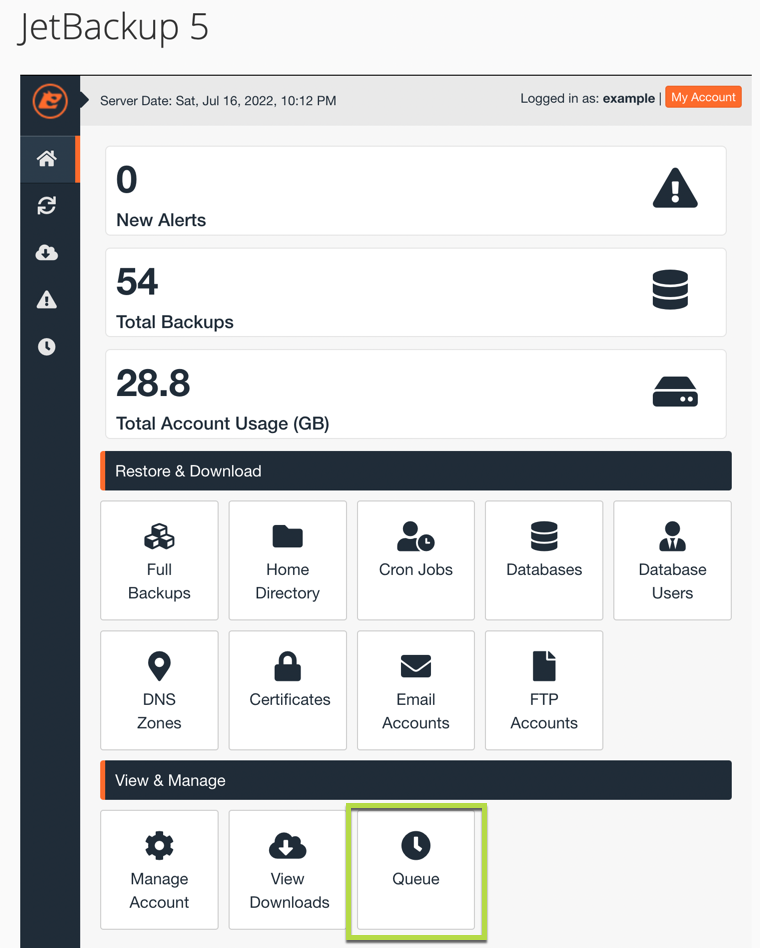
- To restore the files you will access your cPanel and click on "JetBackup 5" in the "Files" section.
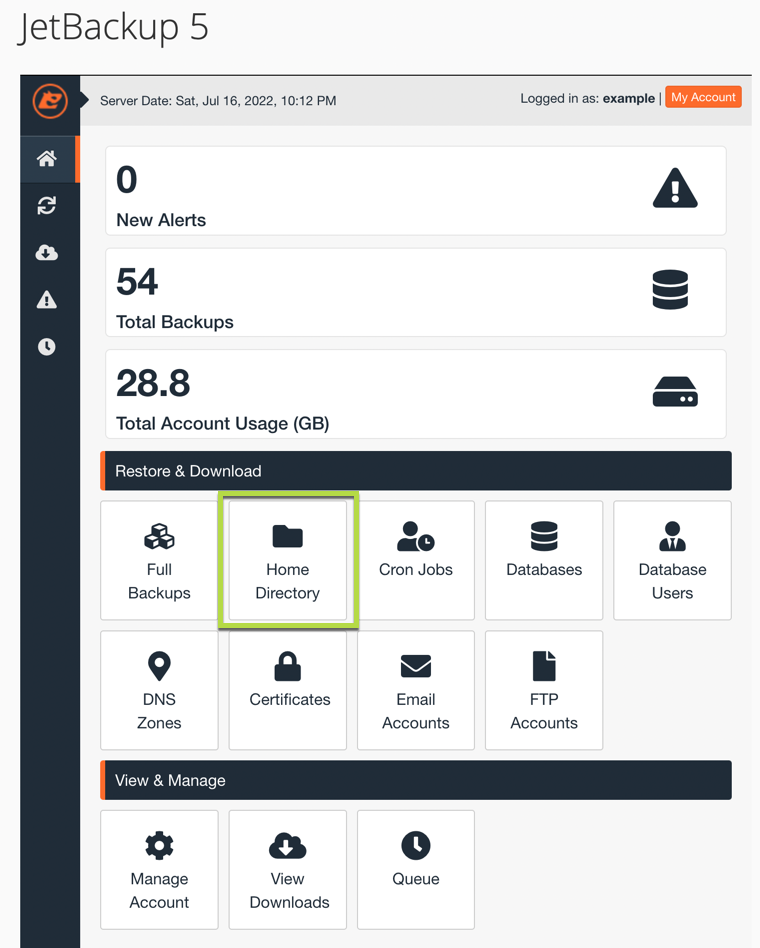
- Click on "Home Directory".
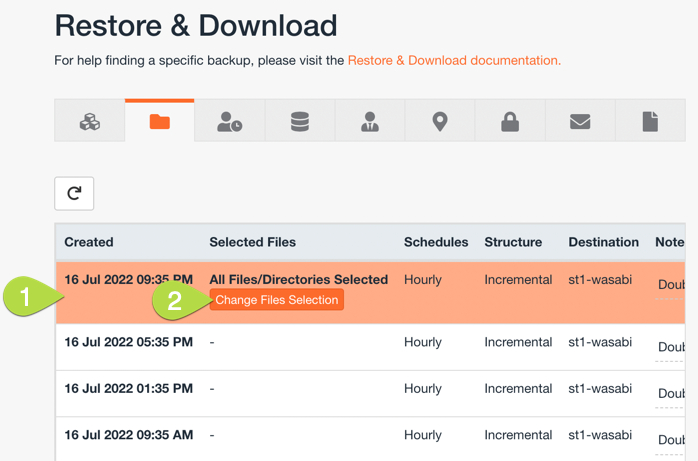
- Click on the date from which you wish to restore and then click on "Change File Selection".
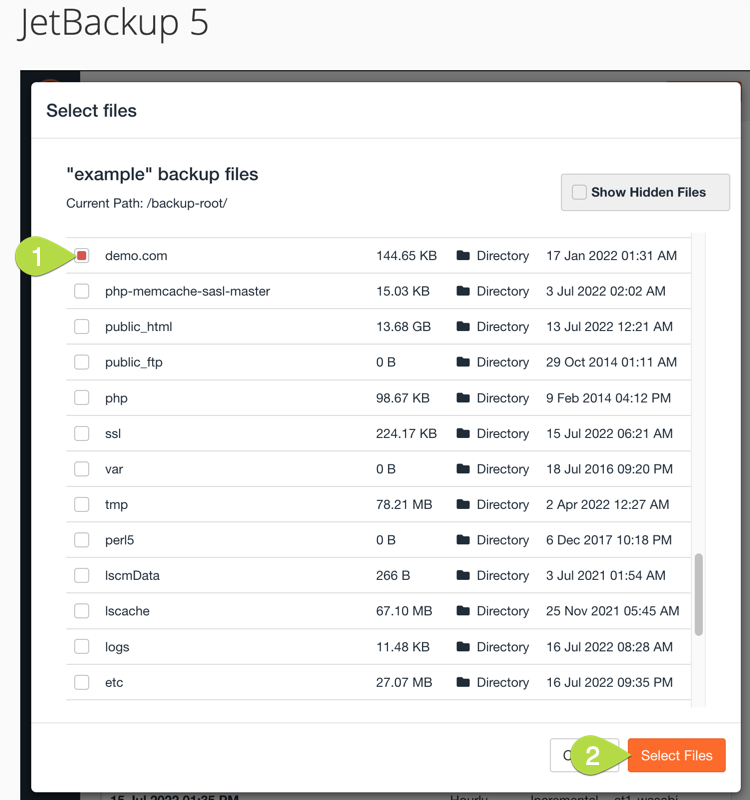
- Check the boxes for the files and/or folders that you wish to restore. You can select multiple files and/or folders. You may want to check the "Show Hidden Files" box if you are not restoring an entire folder. Once you have selected all of the files and/or files you wish to restore click "Select Files".
- You will now see the number of files and/or folders selected. You will next click the "Restore" button.

- You will see a Restore Summary. In this window you will click "Restore Selected Items". If you leave the "Go to Queue after I click Restore" box checked it will take you to the restoration queue page where you can watch the status of the restoration.

Checking the status of the restoration with JetBackup 5
If you left the "Go to Queue after I click Restore." box checked when doing a restore you will be on the "Queue" page in JetBackup 5 that shows you the progress.
- To view the progress of backup restorations in progress access your cPanel and click on "JetBackup 5" in the "Files" section.
- Click on "Queue".